Agvance SKY Mapping Products can be linked to Products in the Hub.
- Navigate to the Product to link in Agvance Windows and choose Edit.
- Double-click in the <Agvance SKY Mapping Product Name> field on the Mapping Recs tab.
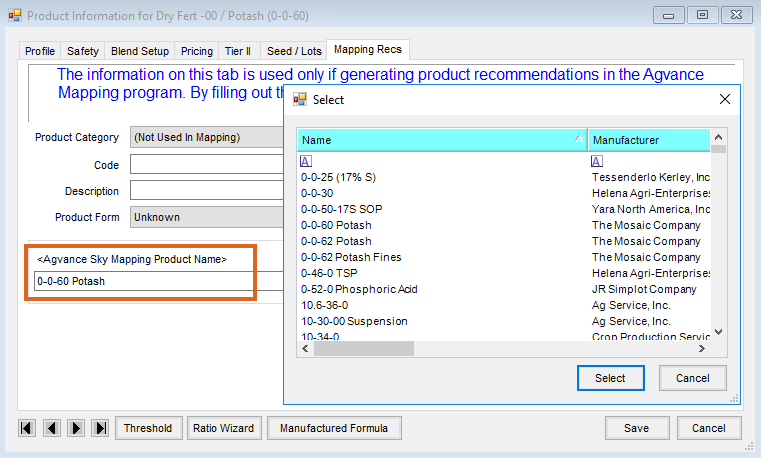
- If the Product is linked to an Agrian ID and the Agrian ID matches the one in Agvance SKY Mapping, the Product will automatically link.
Note: Double-click in the <Agvance SKY Mapping Product Name> field to choose a different Product if needed. - If there is not an Agrian ID set up on the Product, choose the Agvance SKY Mapping Product to link to the Product.
- If the Product is linked to an Agrian ID and the Agrian ID matches the one in Agvance SKY Mapping, the Product will automatically link.
- Highlight the Product in the <Agvance SKY Mapping Product Name> field and use the Delete key on the keyboard to delete a linked Product.
Note: It is recommended to link Products in the master Location so if Product Sync Rules are set up, the information will be available in other Locations. Ensure Line 67 on the Setup Product Synchronization Rules window found at Hub / Setup has both Sync on Add and Sync on Edit checked.

