Agvance SKY Dispatch companies can schedule Tender Drivers either alongside the Applicator assignment or independently. In addition, a dedicated Tender Driver view is available in Agvance Ops, providing Tender Drivers with access to job and product information organized for tender workflow requirements.
Company Settings
Within Company Settings, the configuration for tender-related roles is found under the Agvance Ops tab.
Within Applicator Setup, select the Ellipsis to access the User Type options.

The available types include:
- Applicators
- Delivery Drivers
- Tender Drivers
Vehicle Assignment to Tender Drivers
Vehicles must be assigned to a single Tender Driver at any given time to maintain accurate product compartment information. When assigning a Vehicle that is already assigned to another Tender Driver, the system displays a confirmation dialog.
- On the Agvance Ops tab under Company Settings, select + Add Tender Driver to add a new Tender Driver.

- Choose the Agvance SKY Account for the Tender Driver.
-
Select the Vehicle from the drop-down to link the Vehicle to the Tender Driver.
Note: If the Vehicle is already assigned to a different Tender Driver, a confirmation dialog will display.

Two options are available on the confirmation dialog:
- Cancel – Closes the dialog without making changes. The Vehicle remains assigned to the original Tender Driver.
- Continue – Proceeds with reassignment. The Vehicle is removed from the original Tender Driver and assigned to the selected Tender Driver.
- After selecting Continue, complete any additional setup details and select Save Tender Driver to confirm the Tender Driver


Personalize
Tender Driver visibility and related settings are located within the General tab of Personalize.
Within the Applicators field, select the Ellipsis to open the User Type list.

Available types include:
- Applicators
- Delivery Drivers
- Integrated Devices
- Tender Drivers
Tender Drivers must be enabled here to appear in assignment selections.
Toolbar Assignments
The toolbar allows for assignments to individual jobs or several jobs at once. When assigning to multiple jobs, all selected assignments, including the Primary assignee and Tender Drivers, are applied to each job unless an override message is displayed.

If a job already has an Applicator assigned, the following message will appear. Selecting Assign Selected Jobs will override any previous assignments.

Primary Assignee
When one or more jobs are selected, the assignment panel prompts for a Primary assignee.
A primary Applicator must be selected before Tender assignment becomes available.
Tender Drivers
Once the Primary assignee is chosen, the Select tender drivers option is available. Selecting this opens a list of Tender Drivers configured for the Agvance SKY Dispatch company.
Tender Driver assignment depends on the following configuration:
- Tender Drivers are set up on the Agvance Ops tab under Company Settings.
- Tender Drivers are enabled on the General tab under Personalize.
Note: An Agvance SKY account cannot be assigned as both an Applicator and a Tender Driver on the same job.
Schedules
Selecting Schedules in Agvance SKY Dispatch shows jobs by Applicator with the ability to reorder and reassign jobs. Utilize the User Type drop-down to switch between Applicators and Tender Drivers.
Use the Viewing menu to switch between Blend and Delivery Tickets. Filter Applicators by using the Filter Applicators field. Optionally select the Condense Job Details toggle to view less or more job information.


The schedule may also display indicators that show Tender assignment details or availability.
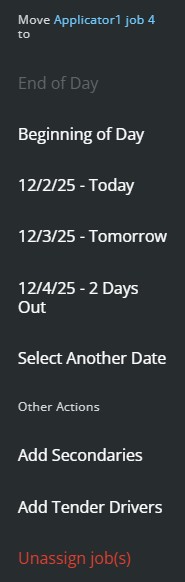
- Right-clicking jobs in Applicators opens a menu with options to move the job to End of Day, Beginning of Day, Tomorrow, 2 Days Out, Select Another Date, Add Secondaries, Add Tender Drivers, or to Unassign job(s).
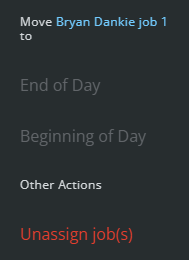
- Right-clicking jobs in Tender Drivers opens a menu with options to move the job to End of Day, Beginning of Day, or to Unassign job(s).
Note: Jobs In Process cannot be reassigned.
