Use the following instructions to set up a SendGrid account.
- Go to the SendGrid homepage.
- Choose Start for free.
Note: SendGrid is free for 60 days.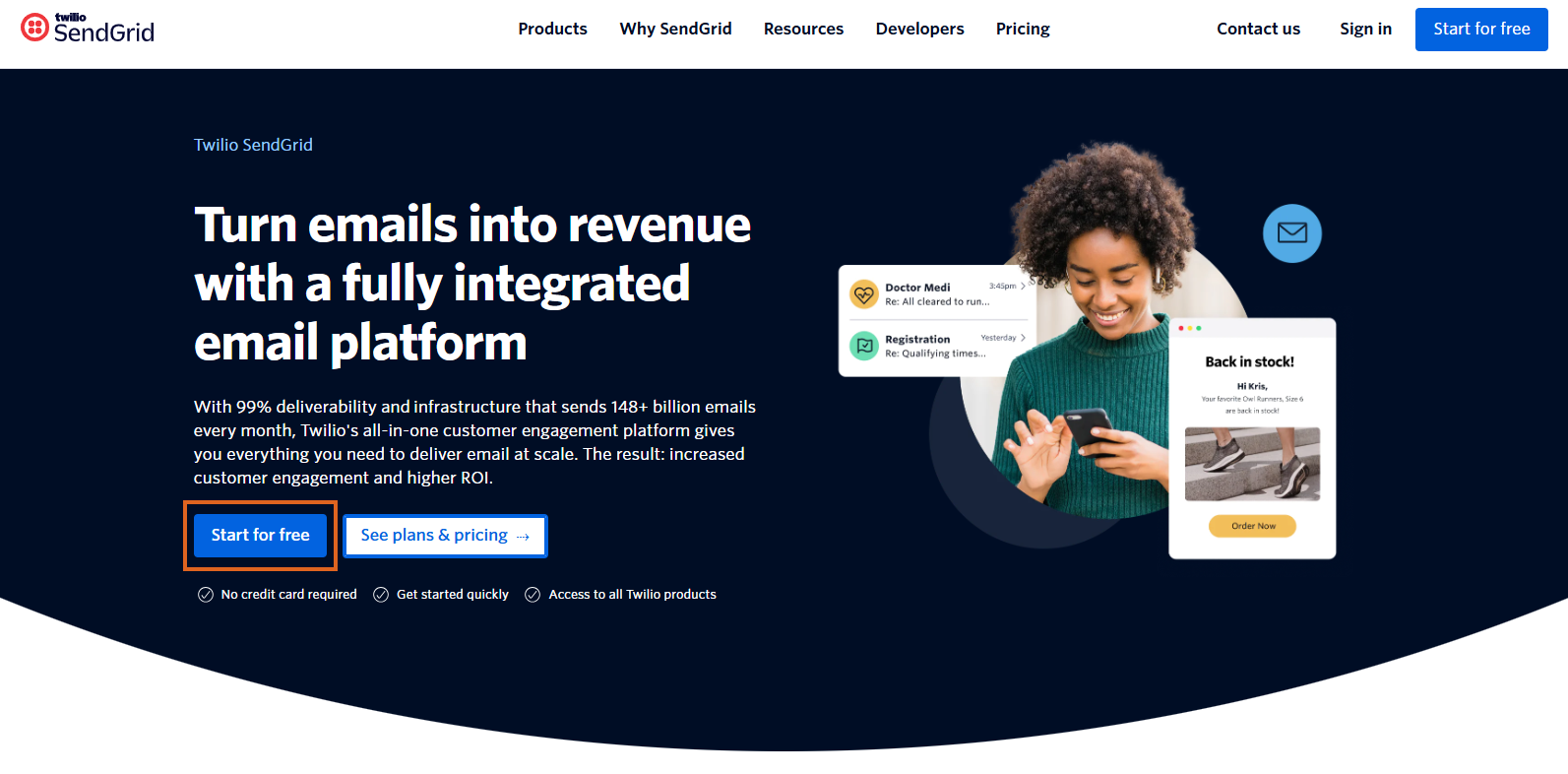
- Fill out the sign up form using a company Email address. The password can be different than the one used for the email account. Signing up with a Gmail account is an option if the company is using that email service. Selecting Sign up with Google navigates to a new page to choose the appropriate Gmail account.
Note: An email will be sent from SendGrid to the email address used here to verify the account.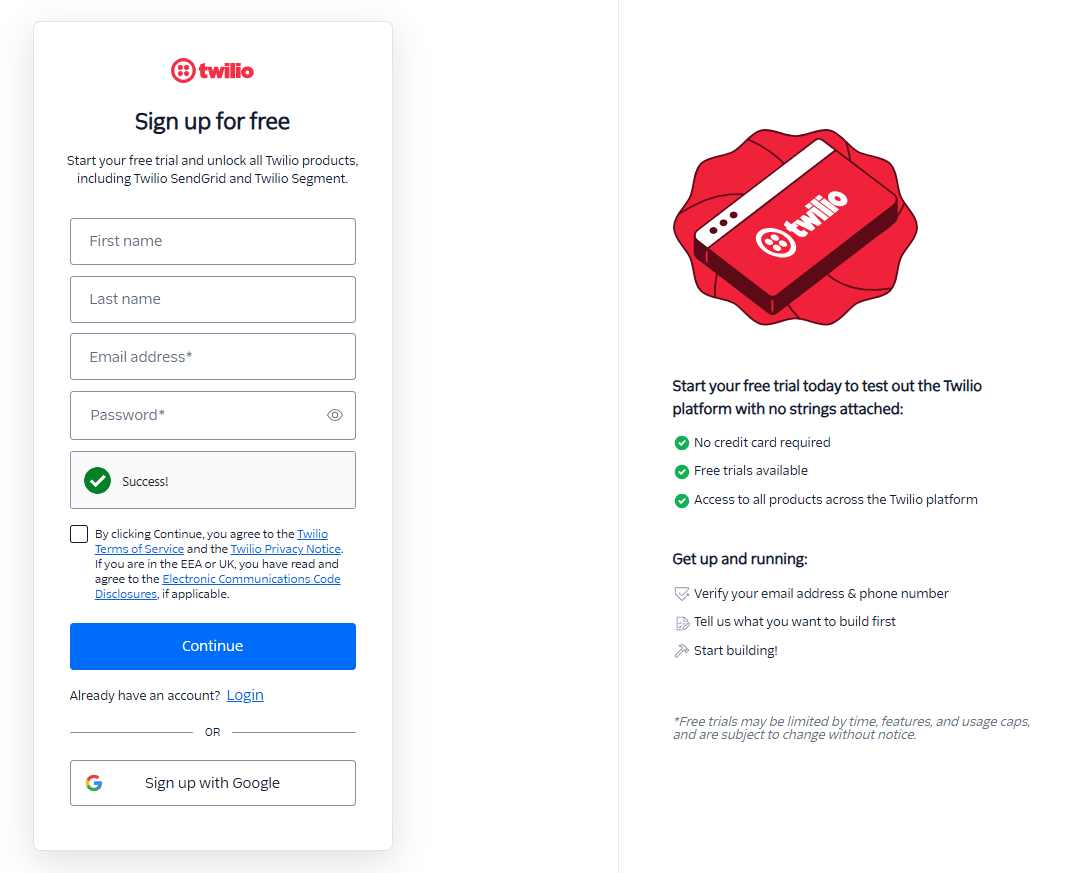
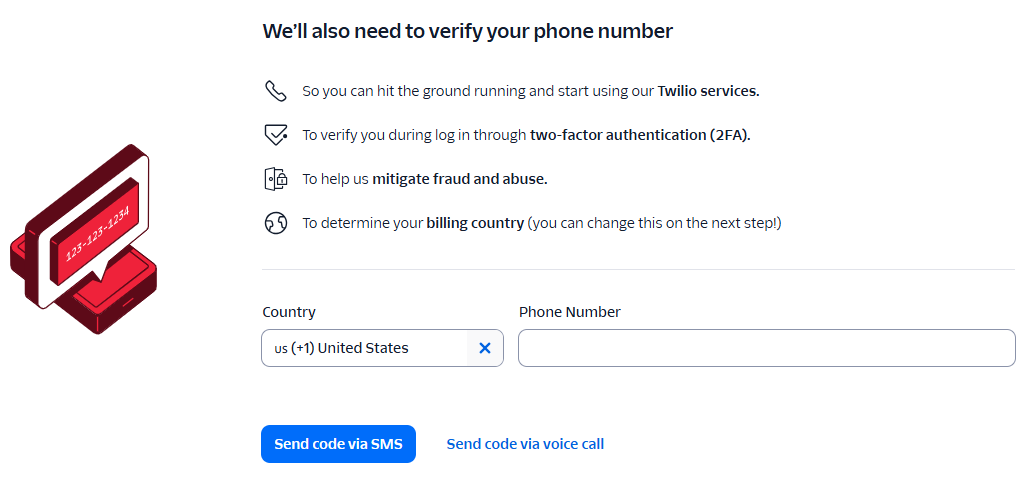
- Choose Continue, then enter a Phone Number for two-factor authentication (2FA). The code can be sent via SMS or a voice call.
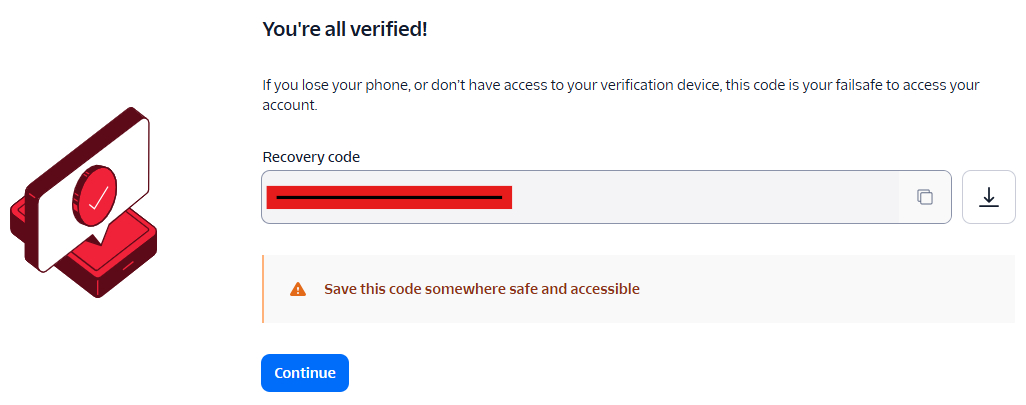
- Enter the Recovery code, which can be used as a failsafe if access to the 2FA device is lost. BE SURE TO KEEP THIS CODE IN A SAFE LOCATION. Download the code as a text file, or copy it to another location. Ensure it's saved somewhere safe and accessible in case it is ever needed.
- The next screen that displays is optional, giving the ability to Send emails from your domain. This can be set up later by choosing Skip to dashboard.
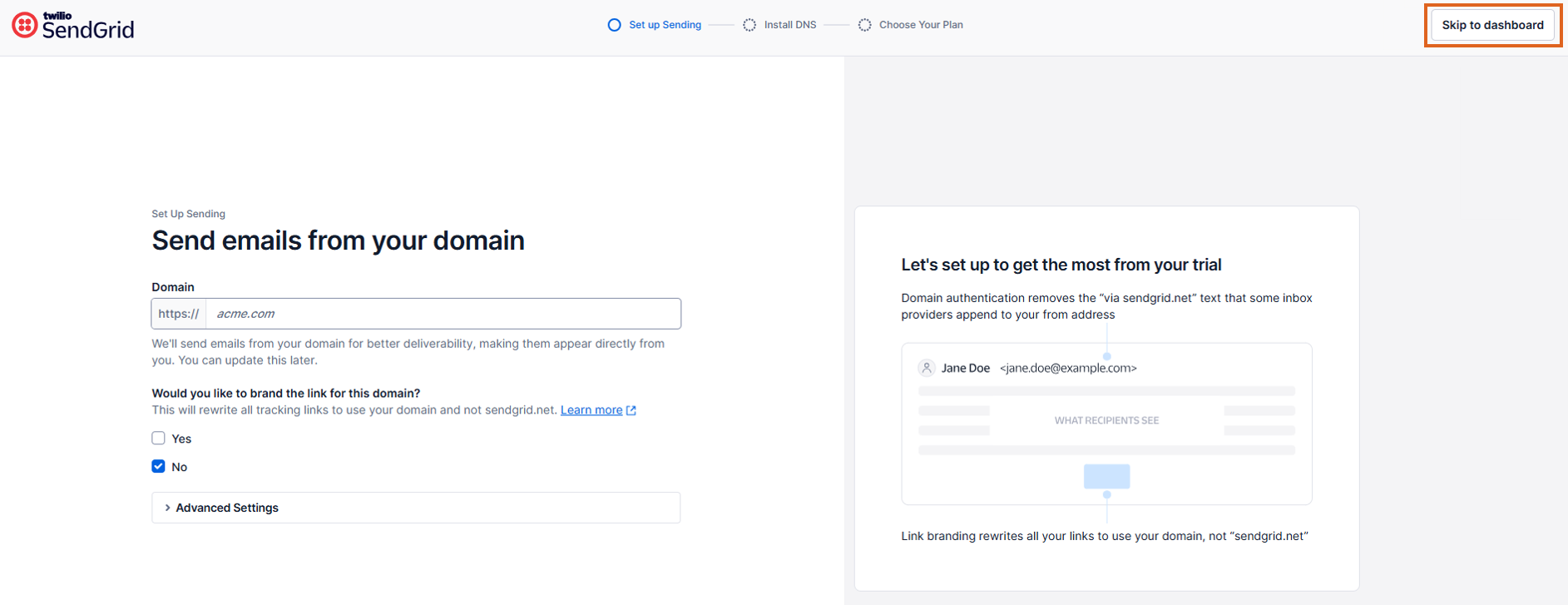
- If Skip to dashboard is selected, it is necessary to go into the settings and verify a single sender using the following steps:
- Log into the account already set up.
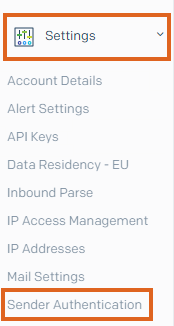
- Go to Settings / Sender Authentication / Verify a Single Sender.
- Add the exact From email address. The address must be an exact match, or it will not send.
- Complete the email verification sent to the From email address. Be sure to check Spam folders if it does not go directly to the Inbox.
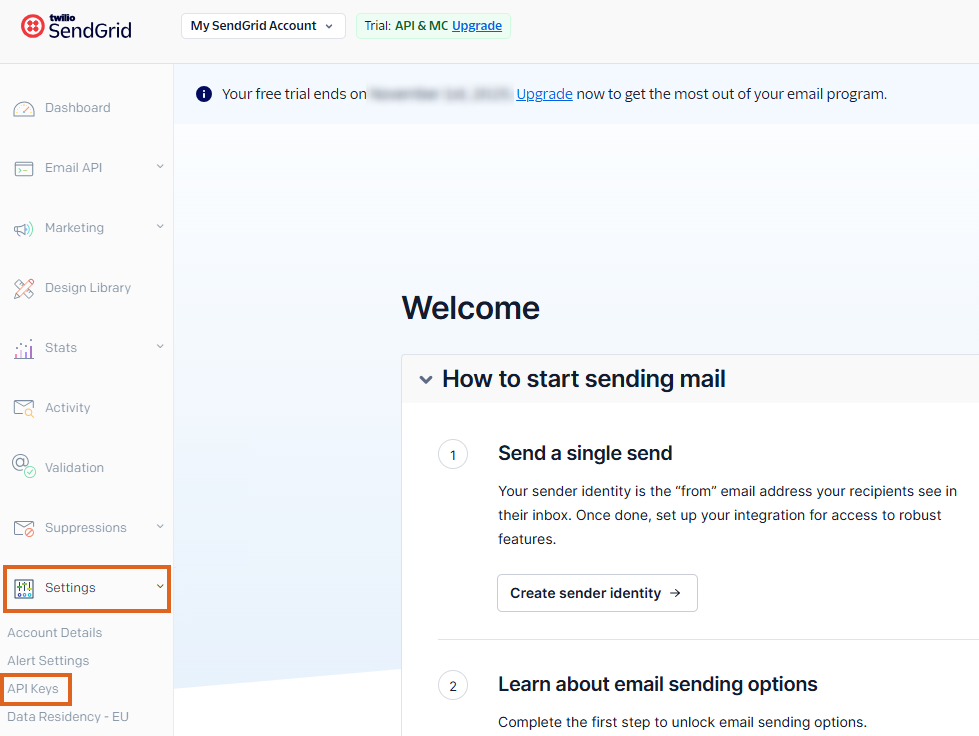
- Upon accessing the dashboard, create an API key by going to Settings / API Keys.
- Choose the Create API Key button. Enter an API Key Name (like email) and choose the preferred API Key Permission (Full Access, Custom Access, or Billing Access). Select Create & View.
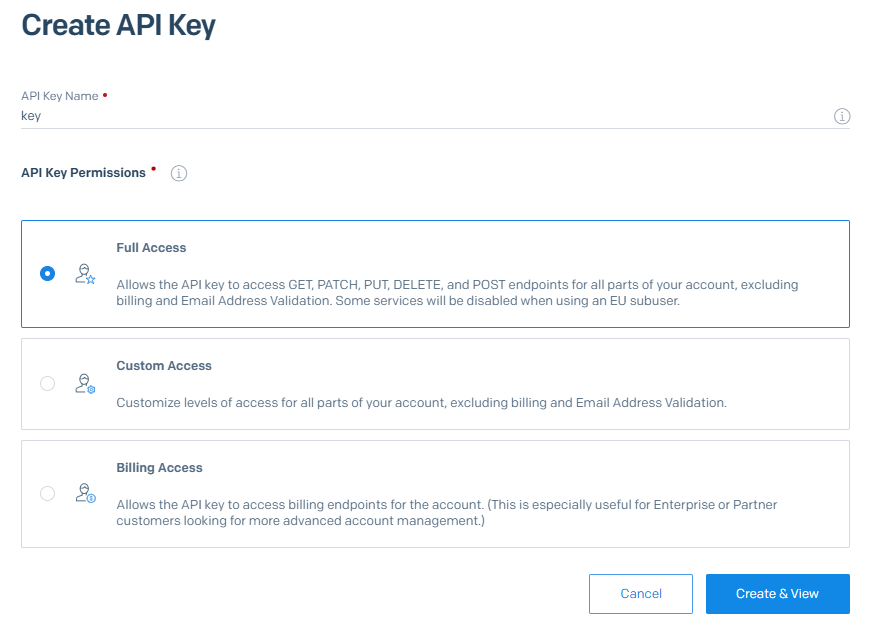
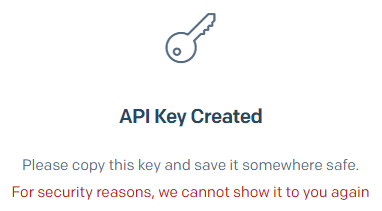
- Save the key by copying and pasting into a text document with Notepad (or similar application). This is the only time this code will be shown, so make sure it is saved before leaving this screen.
- When revisiting the SendGrid website, enter the credentials set up earlier to access the dashboard.
