Reconcile estimated cost to actual cost for freight and additional charges, optionally creating an A/P Bill.
In SKY Analytics, the Freight Reconciliation dashboard combines the three different ways to run the Freight Reconciliation Summary into one dashboard, reducing the amount of time it takes to reconcile freight.
Reconcile Freight/Additional Charges
If Estimated Charges were entered during the purchasing process, this utility is helpful for reconciling the estimated add-on charges with the actual charges. This can by found by going to A/P / Reconcile Freight/Additional Charges.
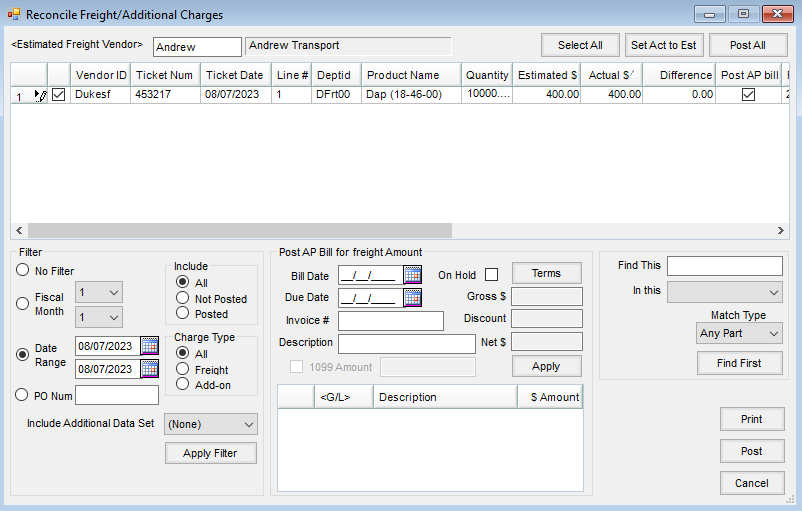
This utility was designed to reconcile estimated freight and accrued add-on charge amounts entered in the Inventory area. Select the checkbox in the first column of line items to be reconciled/edited.
- Estimated Freight Vendor – Select the freight or add-on charge vendor to be reconciled. The charges display and may be filtered by selecting one of the filter options and choosing Apply found in the Filter area.
- Actual $ – Enter the actual amount of the bill in the Actual $ column.
- Post AP Bill – If an A/P Bill is needed, check the Post AP bill checkbox which displays the Post A/P Bill for freight amount information.
- Post A/P Bill for freight amount – Complete the information from the A/P Bill. The Bill Date, Due Date, and Invoice # are required fields. Selecting Apply displays the General Ledger Account from the estimation and the dollar amount from the actual amount in the grid. If one or more additional G/L accounts are required for this A/P Bill, double-click on the G/L column heading of the grid for additional lines. The On Hold option creates the A/P bill and makes the journal entries but hides the A/P Bill at the Pay Bills window. To pay the Bill, open it at Accounting / A/P / Add/Edit Bills and uncheck the On Hold option. Choose Post to post the items to the general ledger and the A/P Bills.
Note: Be cautious in changing the GL account number listed in the Post AP Bill for freight Amount section. The number is automatically populated as indicated below:- If reconciling estimated freight, it populates from the Estimated Freight account number at Accounting / Setup / Locations on the G/L Posting tab.
- If reconciling add-on charges, it populates from the G/L Account number at the Edit a Purchase Add-on Charge window at Accounting / Setup / Inventory / Purchase Add-On Charges. If no G/L account is indicated, it populates from the same area as estimated freight.
- Journal Entries for the difference between estimated and actual costs are automatically made to the account listed above and the G/L account listed as the Freight/Add On # at Accounting / Setup / Inventory Departments on the G/L Posting tab.
- Post A/P Bill for freight amount – Complete the information from the A/P Bill. The Bill Date, Due Date, and Invoice # are required fields. Selecting Apply displays the General Ledger Account from the estimation and the dollar amount from the actual amount in the grid. If one or more additional G/L accounts are required for this A/P Bill, double-click on the G/L column heading of the grid for additional lines. The On Hold option creates the A/P bill and makes the journal entries but hides the A/P Bill at the Pay Bills window. To pay the Bill, open it at Accounting / A/P / Add/Edit Bills and uncheck the On Hold option. Choose Post to post the items to the general ledger and the A/P Bills.
- Select All – This selects all charges showing in the grid. Line items can be selected individually with the checkbox in the first column.
- Set Act to Est – Quickly set the Actual $ column to be the same dollar amount as the Estimated $ column. After using this, edits can be made to the Actual $ amount as necessary.
- Filter – The grid is populated based on the criteria selected in the Filter section of the Reconcile Freight/Additional Charges window. Select Apply after changing the criteria.
- Post All – Choose this to select the Post A/P Bill column for all the estimated charges showing in the grid.
- Print – This will print the grid.
- Post – Selecting this will post the Journal Entry for the difference between the estimated and actual amounts for all selected entries and optionally the A/P Bills.
Posting Notes
If the option to Post an A/P Bill was used, the posting of the bill is identical to the posting that occurs when an A/P Bill is manually added.
Note: Freight/Additional Charges can be re-reconciled after a Bill has been posted if needed. To do this, select the Vendor and filter for Posted. Select the line item in the grid needing re-reconciled. Enter the correct Actual $ in the grid, and select Post. A Journal Entry will be made for the difference for the Freight/Add-On account from the Inventory Department and the Estimated Freight Account (for the Location) or the accrual account. The original AP Bill can then be voided and a new Bill entered at A/P / Add/Edit Bills as a new Bill cannot be posted for the same line on the Reconcile window.
- General Ledger – A Vendor-Type Journal Entry is made to move the amount from the Estimated General Ledger Account to the Actual account. If there is a difference in the Actual $ compared to the Estimated $, the difference is handled with a Journal Entry.
| Vendor Journal Entry | Debits | Credits |
| Amount Due Vendor on AP Bill (if AP Bill is posted) | Estimated Freight (for the Location) or the accrual account | |
| Amount Due Vendor for AP Bill (if AP Bill is posted) | Accounts Payable (for Vendor Location) | |
| Difference between Estimated Freight and Actual Freight | Freight/Add-On account from Inventory Department | |
| Difference between Estimated Freight and Actual Freight | Estimated Freight Account (for the Location) or the accrual account |
Troubleshooting
If Estimated Freight was added to a Purchase Receipt/Purchase Invoice but the Actual Freight on the bill is different than what was entered, the Reconcile Freight/Additional Charges utility DOES correct the GL when the Bill is created.
However, the cost of the individual Product will be skewed if there is a large variance. This cost will not be adjusted upon reconciling Freight. To adjust, void the Purchase Receipt and Purchase Invoice (if a PI was added), then re-enter with the correct freight cost.
Once the PR/PI are re-entered, the reconciliation can be completed and the AP Bill posted.
