Company Settings controls how jobs are classified, prioritized, colored, and tagged across Agvance SKY Dispatch. The General tab sets Type of Work, Priority labels, and Map colors. The Custom Tags tab creates tags used to group Blend and Delivery Tickets.
General
Type of Work
On the General tab, choose which Department Classification to use for Types of Work. Only one Classification can be selected at a time.

Note: Type of Work Classifications are Inventory Departments included in a Classification (for example, Dispatch Type of Work). Department Classifications are set up in Agvance Windows on the Product tab at Hub / Setup / Company Preferences.
Priority
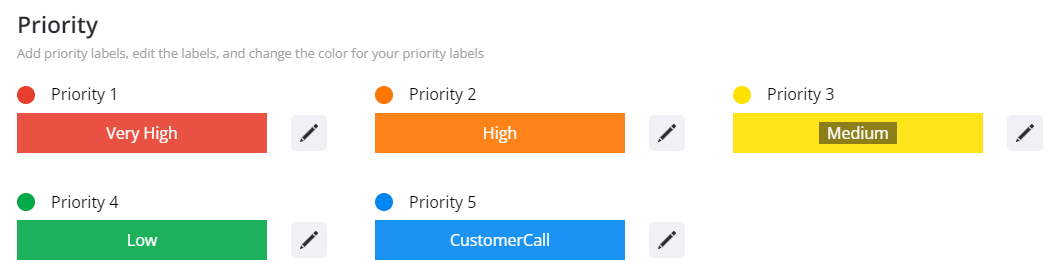
Select the Edit icon to add or edit a Priority label or change its color. Priority labels must be 6 to 30 characters and use a color from the predefined list. The label and color display in the Priority column for jobs.
Map

Select the Edit icon on a map feature to change its color. A preview of the feature displays on the map. Available features include:
- Selected Jobs
- Assigned Jobs
- Unassigned Jobs
- Crop Chemistry
- Driftwatch
- Non-Field Features
- Selected Applicator
Custom Tags
Tags identify custom groups on Blend and Delivery Tickets. Select + Add Blend Tag or + Add Delivery Tag to create a tag. Once a tag is added to a job, it displays in the Custom Tags column.
Note: Tags added in Agvance SKY do not appear in Agvance Windows.
Apply Custom Tags to Jobs
The steps below apply to both Blend Jobs and Delivery Jobs. Use the Filter icon to show only jobs with specific Custom Tags.
Multiple Jobs
- Select the checkboxes for the appropriate jobs in Agvance SKY Dispatch.
- Choose the Ellipsis in the search bar, then select Manage Custom Tags.

- Select a Custom Tag from the drop-down. Scroll the list or start typing to search tags already created in Company Settings.
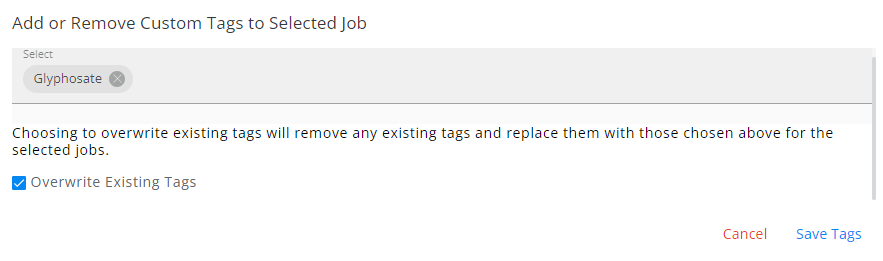
- Optionally, check Overwrite Existing Tags to remove existing tags and replace them with the tags selected.

Single Job
- Select the checkboxe for the appropriate job in Agvance SKY Dispatch.
- Choose the Ellipsis in the search bar, then select Manage Custom Tags.
- Choose the X on a Custom Tag to remove it, or select a Custom Tag from the drop-down to add it.
Multi-Field Tickets
A Custom Tag added to a multi-Field Blend Ticket applies to all jobs on that ticket.