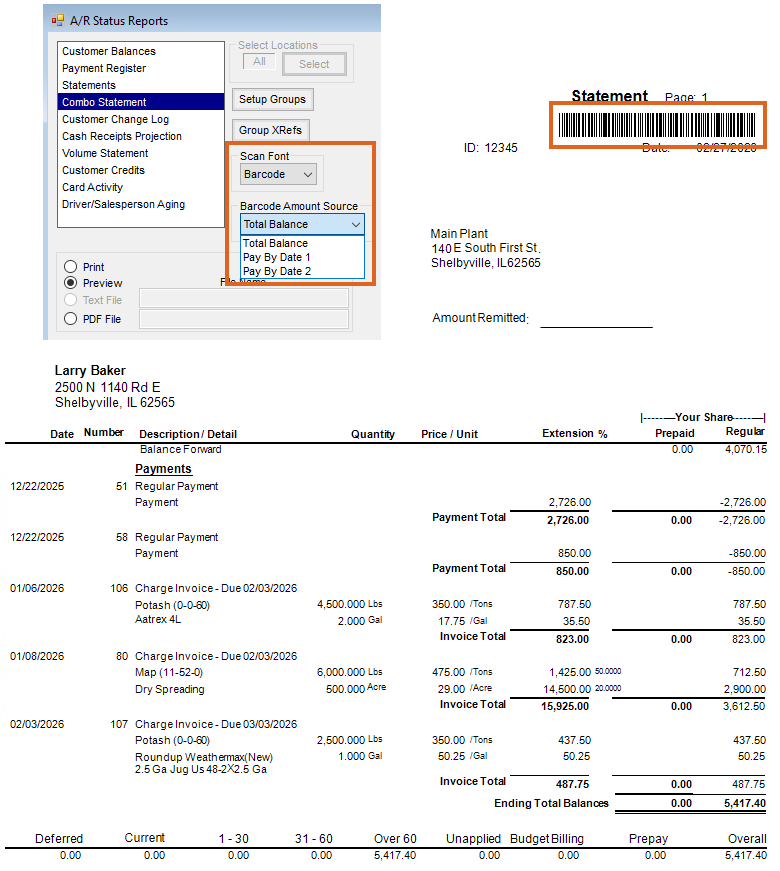
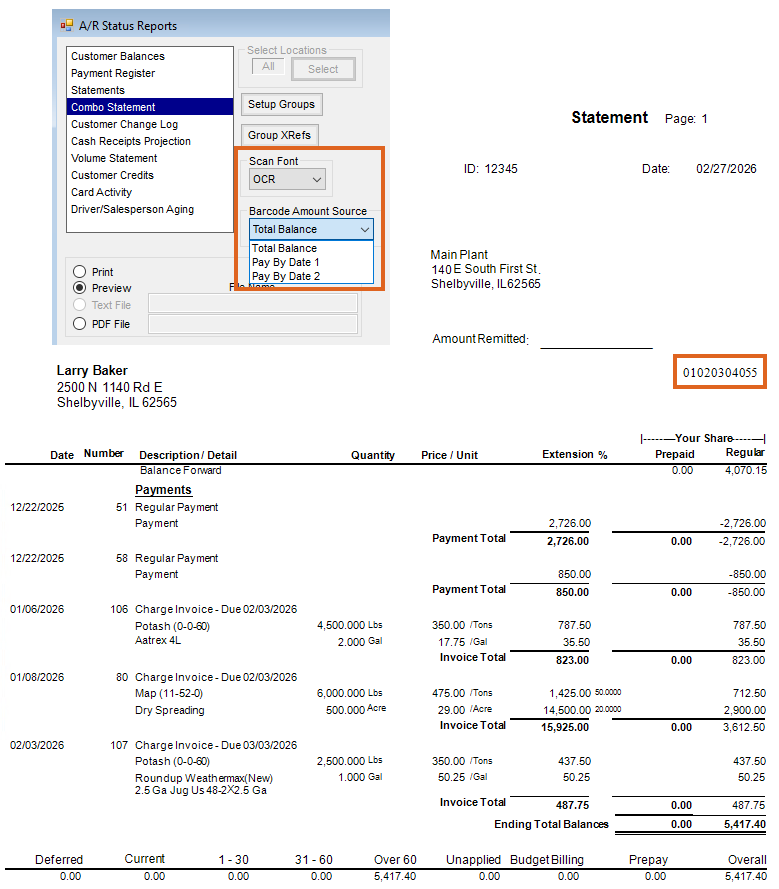
The Alternate 2 Combo Statement includes the Remit Address found in the Location settings and also includes a barcode or OCR code that represents up to six characters of the Customer ID and a statement balance.
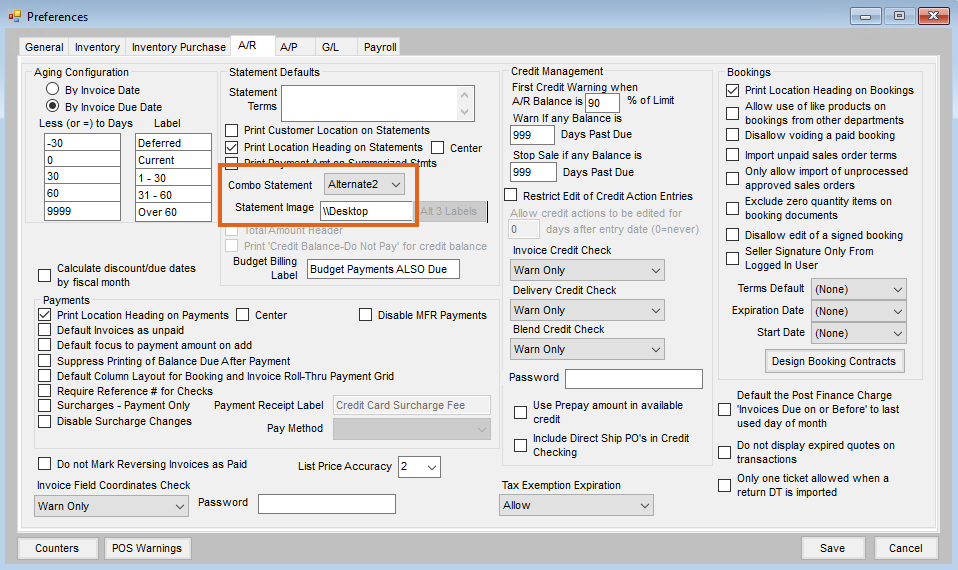
A JPEG file of the Statement image can be selected to print in the upper-left corner of the Statement. Define the path for the JPEG file on the A/R tab at Accounting / Setup / Preferences in the Statement Image area.
The Location heading information does not print on this style, so it is recommended to include the Location information in the JPEG image or use a pre-printed form.
Before running the Combo Statement, navigate to the A/R tab at Accounting / Setup / Preferences, then choose Alternate2 in the Combo Statement drop-down.
To run the report, navigate to Accounting / Reports / Accounts Receivable / A/R Status. Choose to print a Barcode or OCR from the Scan Font drop-down. Then, indicate the Barcode Amount Source (Total Balance, Pay By Date 1, or Pay By Date 2). The If Paid By Dates are set in the Report Criteria area.
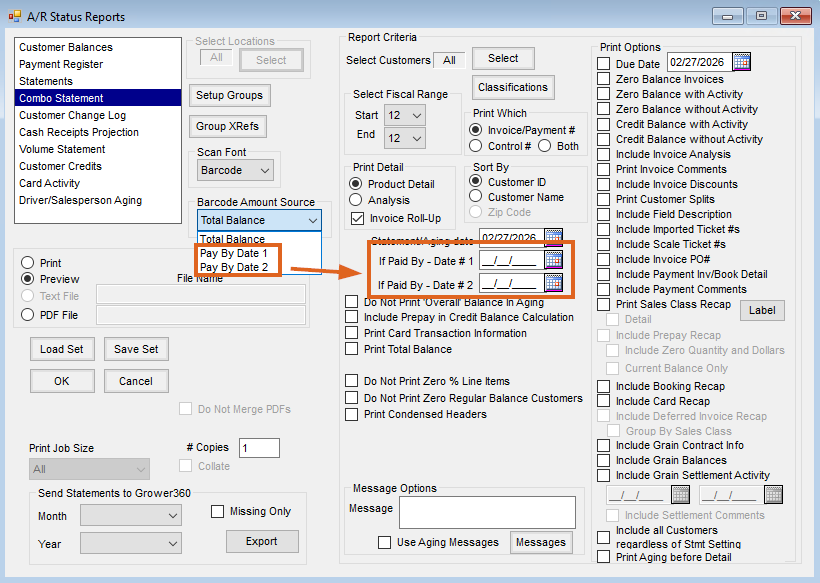
Additional information regarding Report Criteria for Combo Statements can be found here.
Note: The Do Not Print 'Budget Pymts ALSO Due option is not available with this format.